Your first worktree
The whole loop once through, with what happens behind each click. It assumes you've registered a repository already (Onboarding).
1. Open the New worktree dialog#
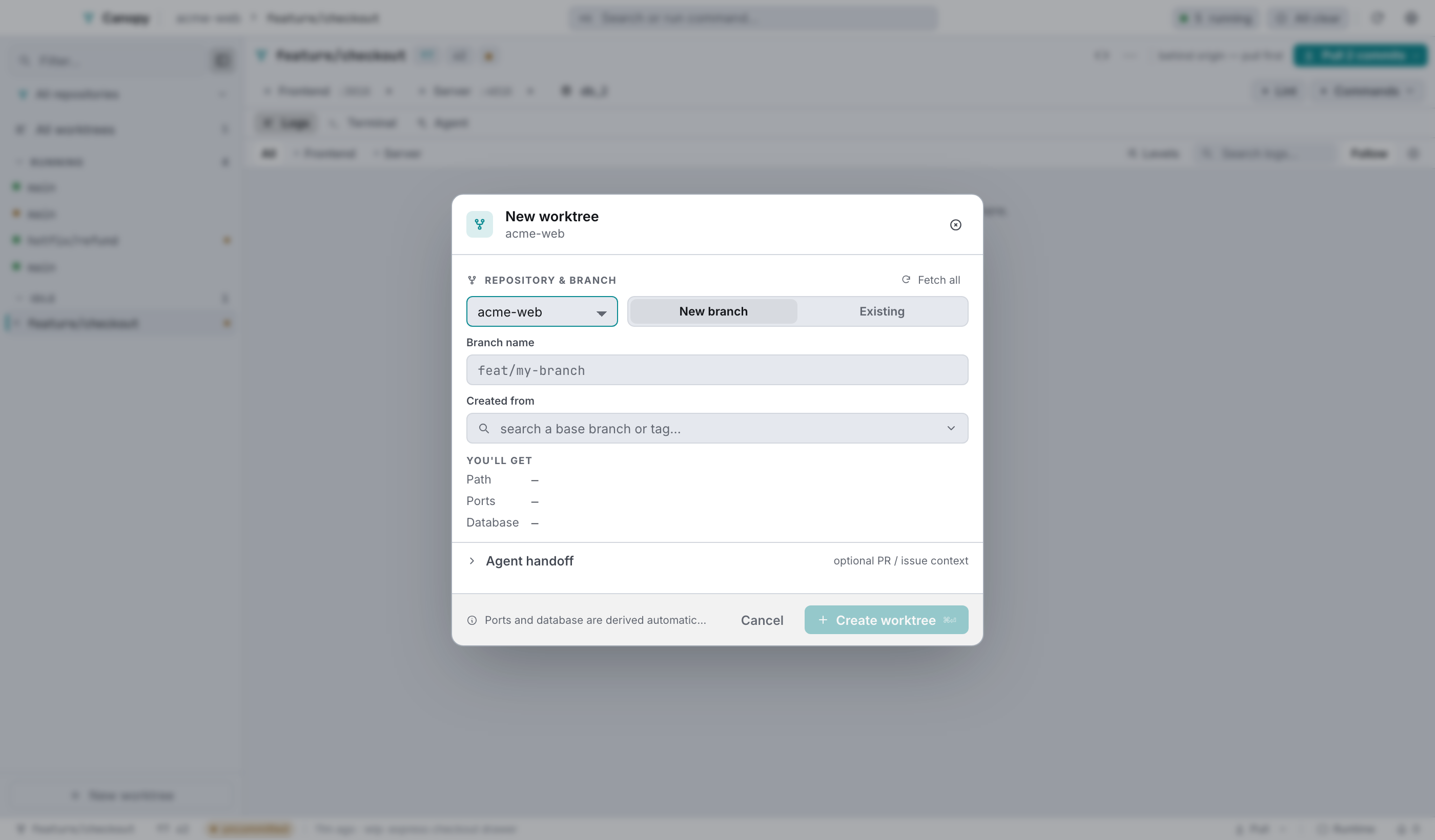
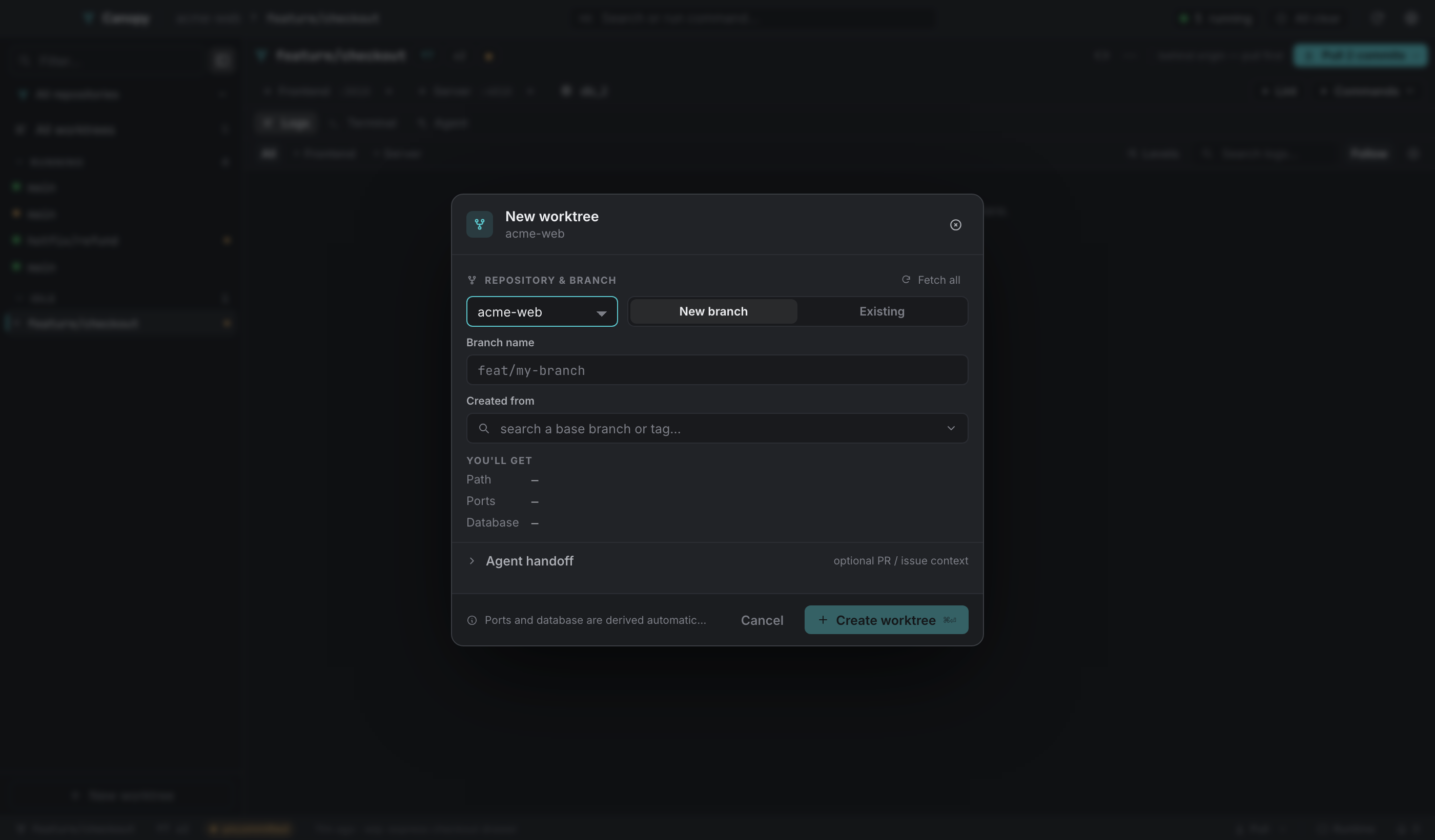
⌘N, or New worktree at the bottom of the sidebar, or ⌘K → New worktree, or the button in the popover footer.
2. Choose the branch#
There are two modes. New branch takes a name and a base to fork from; the Created from picker searches local branches, remote branches and tags. Existing takes a ref that's already there. Branches checked out in another worktree show up disabled, because git won't check the same branch out twice.
Fetch all refreshes refs first with git fetch --all --prune --recurse-submodules, then tells you what it found: "Fetched — 14 local, 62 remote, 9 tags".
Your pick becomes a git operation like this:
| You picked | Canopy asks git for |
|---|---|
New branch feat/x from main | create feat/x from main |
Existing local branch feat/x | check out feat/x (no branch creation) |
Remote origin/feat/x | a local feat/x tracking it, reusing the local branch if one exists |
Tag v1.2.0 | a local branch named v1.2.0 created from refs/tags/v1.2.0 |
That last pair matters. git worktree add <path> origin/foo checks the remote-tracking ref out detached, so Canopy always resolves to a real local branch.
3. Read the destination panel#
You'll get shows the path the worktree will land at, worked out the same way the backend works it out: the repo's configured worktree directory (absolute, or relative to the repo, defaulting to <repo>/.worktrees), plus the branch name sanitised. Letters, digits, - and . survive; everything else becomes _; case is preserved. Feature/Foo becomes Feature_Foo.
Ports and database say "assigned at creation", because the backend derives them and the dialog would only be guessing.
4. Optional: fill in the agent handoff#
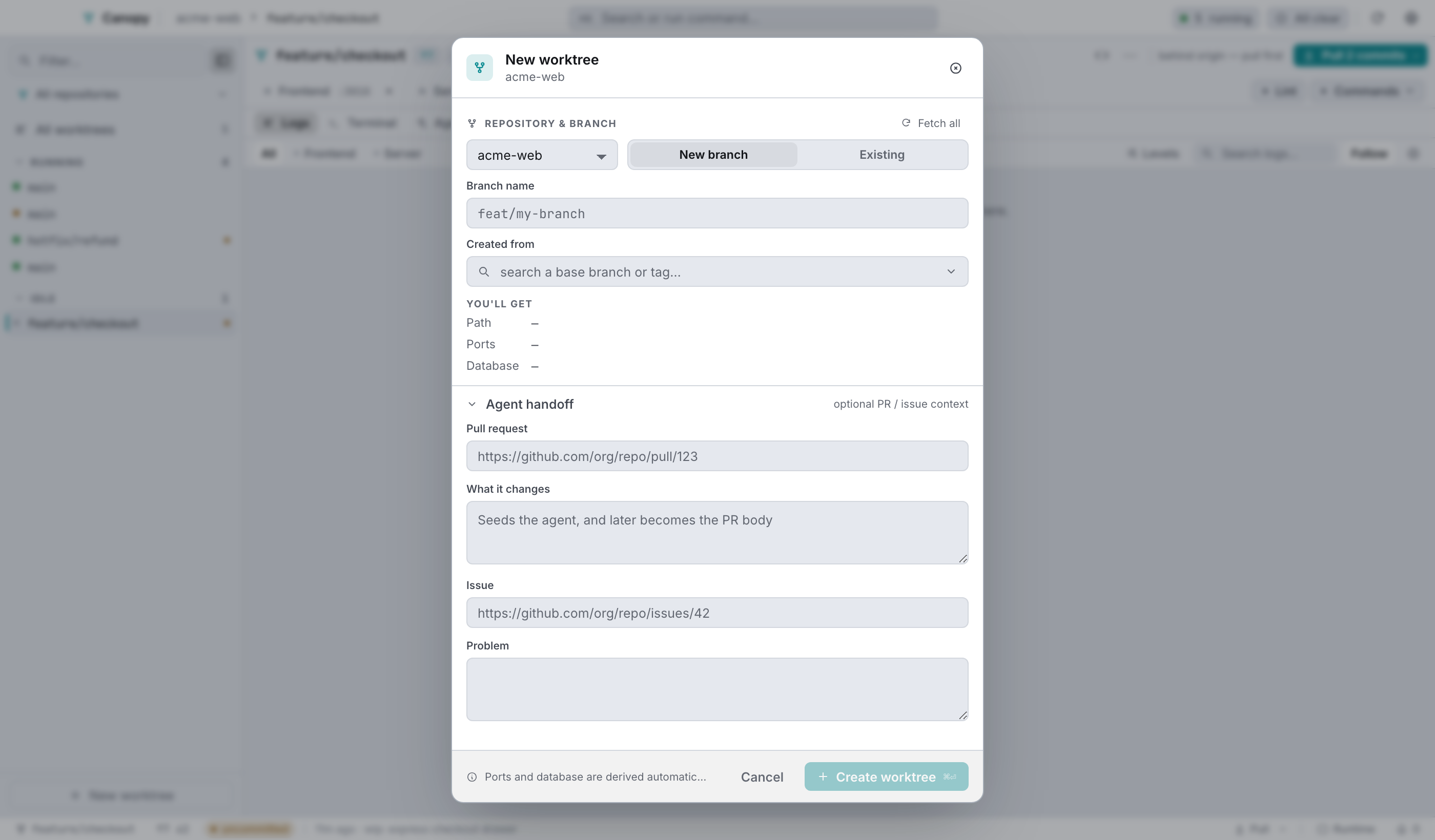
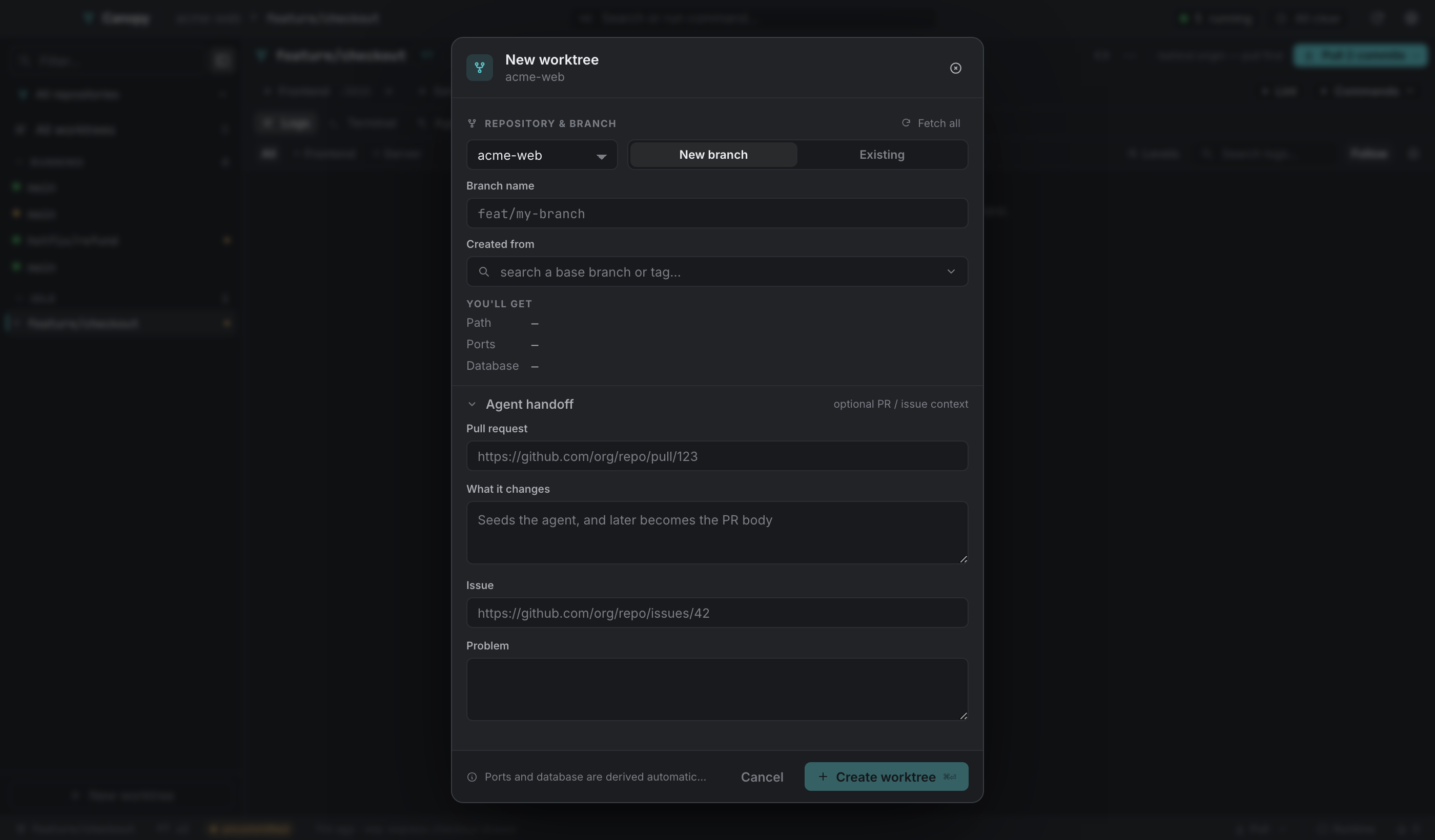
Anything you type here seeds the worktree's context. That becomes .canopy/context.md when you launch an agent, and you can copy it as a PR body later. Most worktrees don't need it.
5. Create it#
Create worktree (⌘⏎) kicks off a job the backend owns:
git worktree addat the resolved path.- Submodules initialised and updated, sharing objects with the main checkout through
--reference. - A port index assigned (or reused) and the worktree's variables computed.
- Provisioned files seeded and templated (
.envand anything else inprovision). setupcommands run in order, on the worktree's pinned toolchain.
Progress streams into the dialog. Two things to know: Run in background dismisses the dialog and lets the job finish, with an in-progress row in the sidebar showing the live step and the outcome landing in Needs you either way. And a failure is recorded as a notice even while the dialog is open, so it can't disappear along with it.
6. Provision again later, if you need to#
The ⋯ menu's Run setup… re-runs the same provisioning on an existing worktree, after a dependency change or a first run that failed. The runner lists the ordered steps it parsed from the backend's [k/n]: markers. If you use "Run in background" and then reopen it, it attaches to the run already in flight instead of starting a second one.
7. Start the services#
Press ⏎ (the next action will read Start services), click the button in the worktree bar, or use the play button on the sidebar row.


Each service is spawned through your login shell, in its own process group, in its configured directory, with $PORT set to its own effective port and every worktree variable exported. Clicking a chip's port opens http://localhost:<port>.
8. Read the logs#
The Logs pane merges every service's output into one time-ordered stream, tagged per service. Filter by service, filter by level, search, and toggle Follow.
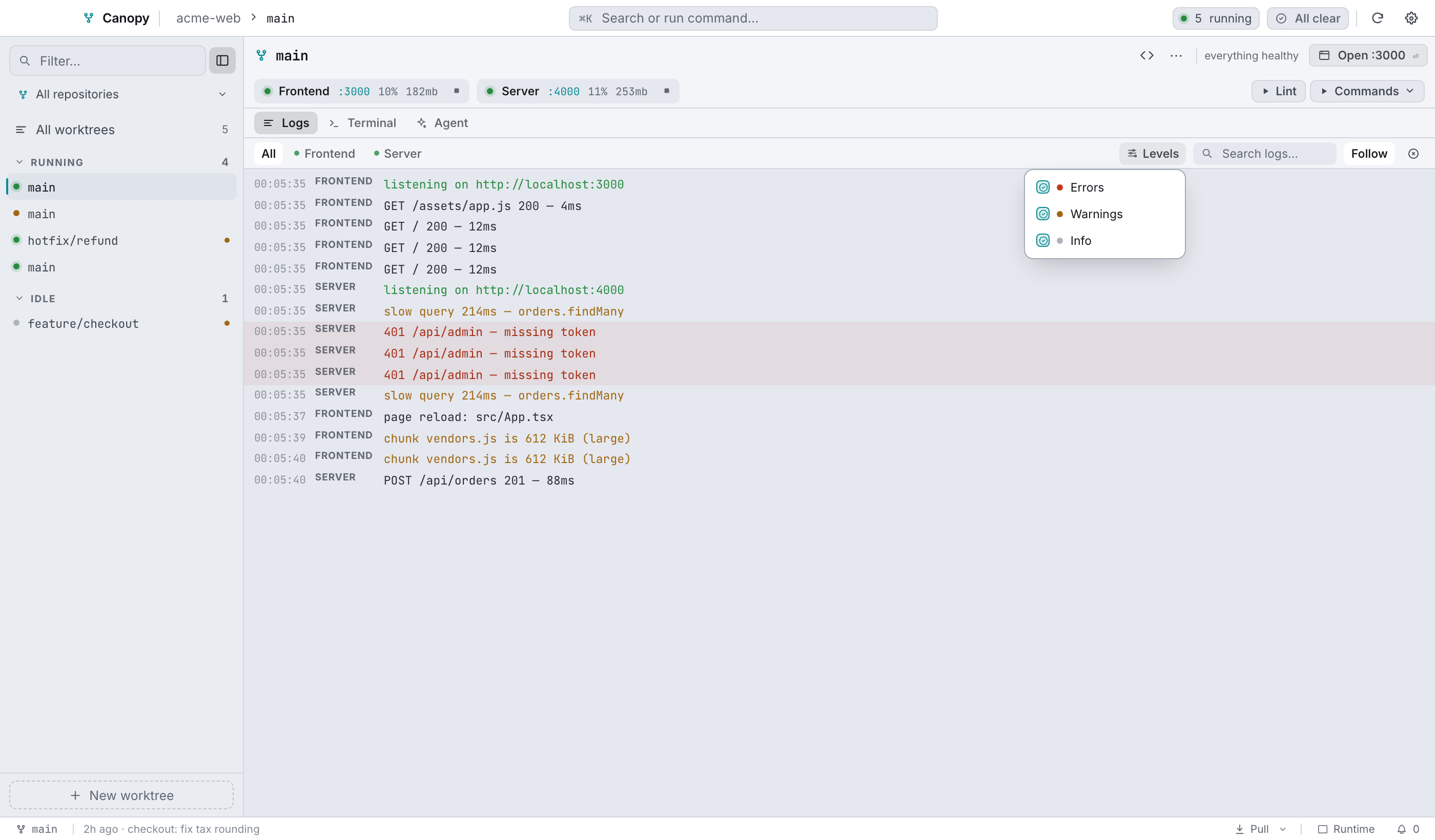
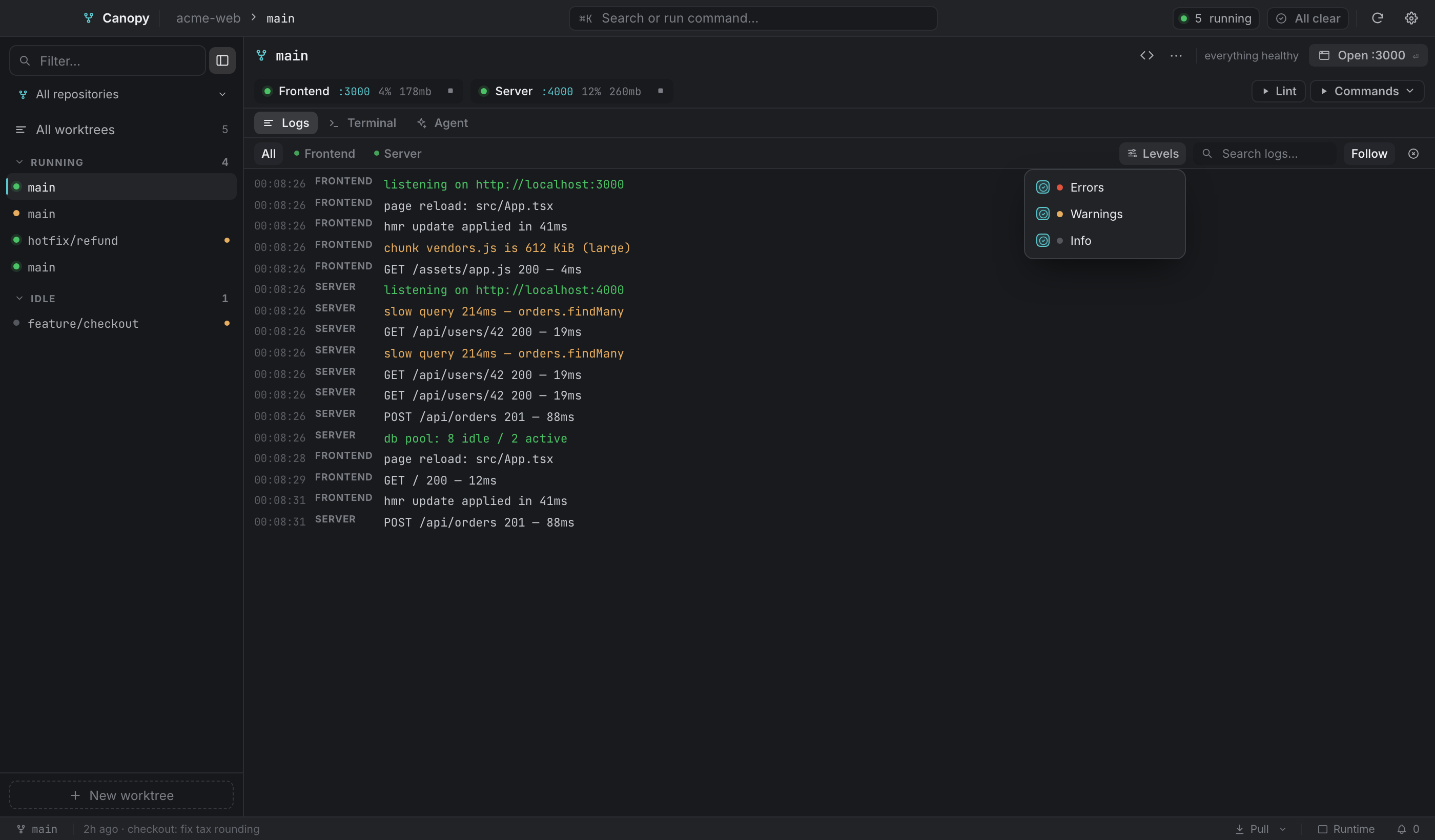
If a service exits, a bar appears above the stream with Jump to error (which filters to that service, shows errors only, and scrolls to the end) and Restart.
9. Work in the worktree#
- Open in editor from the icon in the worktree bar, using the editor command from settings.
- Terminal:
⌘4or⌘5for the terminal layouts, or the sidebar row's terminal button. It's a real login shell in the worktree, on its pinned toolchain. - Agent:
⌘3, then Start agent. Canopy writes.canopy/context.mdfirst, then runs your agent CLI with a composed prompt. See Terminals and agents. - Pull from the status bar. The caret opens per-submodule control.
- Uncommitted changes: the status bar's dirty chip opens commit, stash or discard.
10. Clean up#
⋯ → Remove worktree…
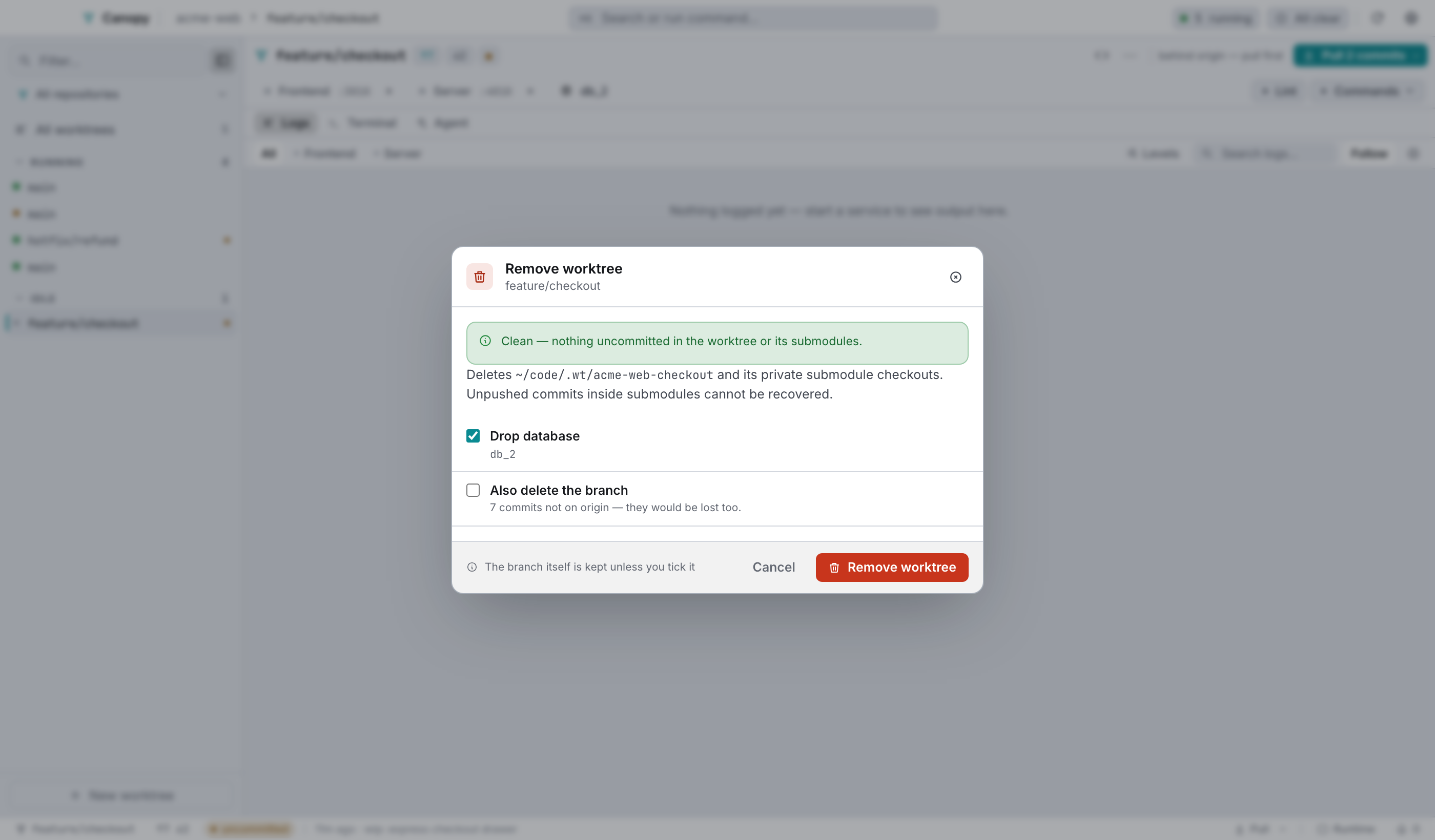
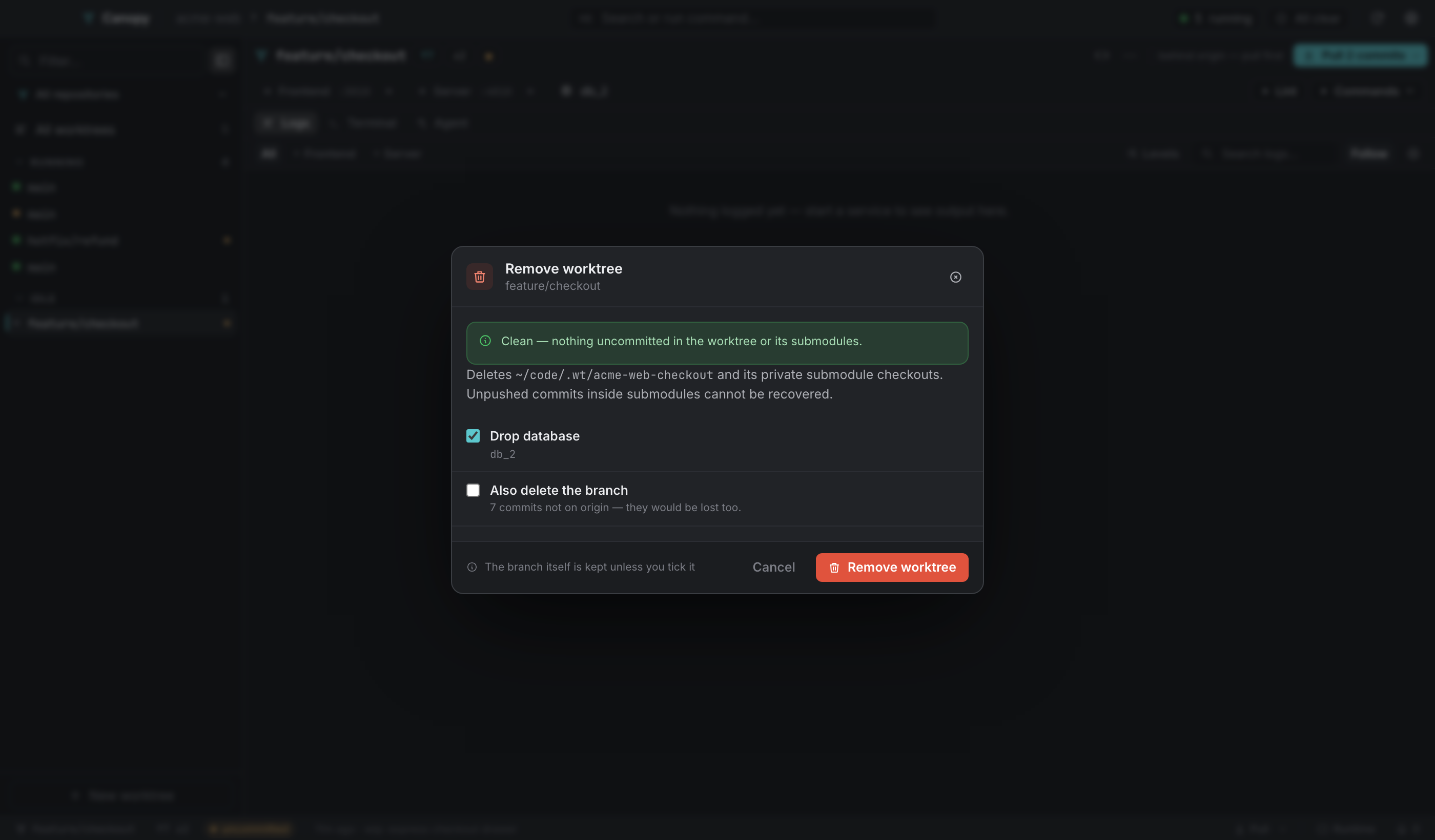
The dirty precheck runs first and fails closed. If it can't read the status, removal stays disabled rather than claiming the tree is clean. Drop database is on by default, since the database belongs to this worktree. Also delete the branch is off by default, and warns you when the branch has commits that aren't on origin.
Canopy stops the services, runs teardown, removes the worktree with --force, optionally deletes the branch, then prunes. Like create, it can run in the background.